Categories, dishes and photos
Group dishes into categories, each with an optional photo. Give every dish a name, description, price and a veg, non-veg or egg mark. Add several photos, pick the thumbnail, and set a kitchen station.
Ordering
Add dishes with photos, sizes and add-ons, set the tax on each, and switch one off the moment the kitchen runs out. Guests and your counter both order from what you set here.
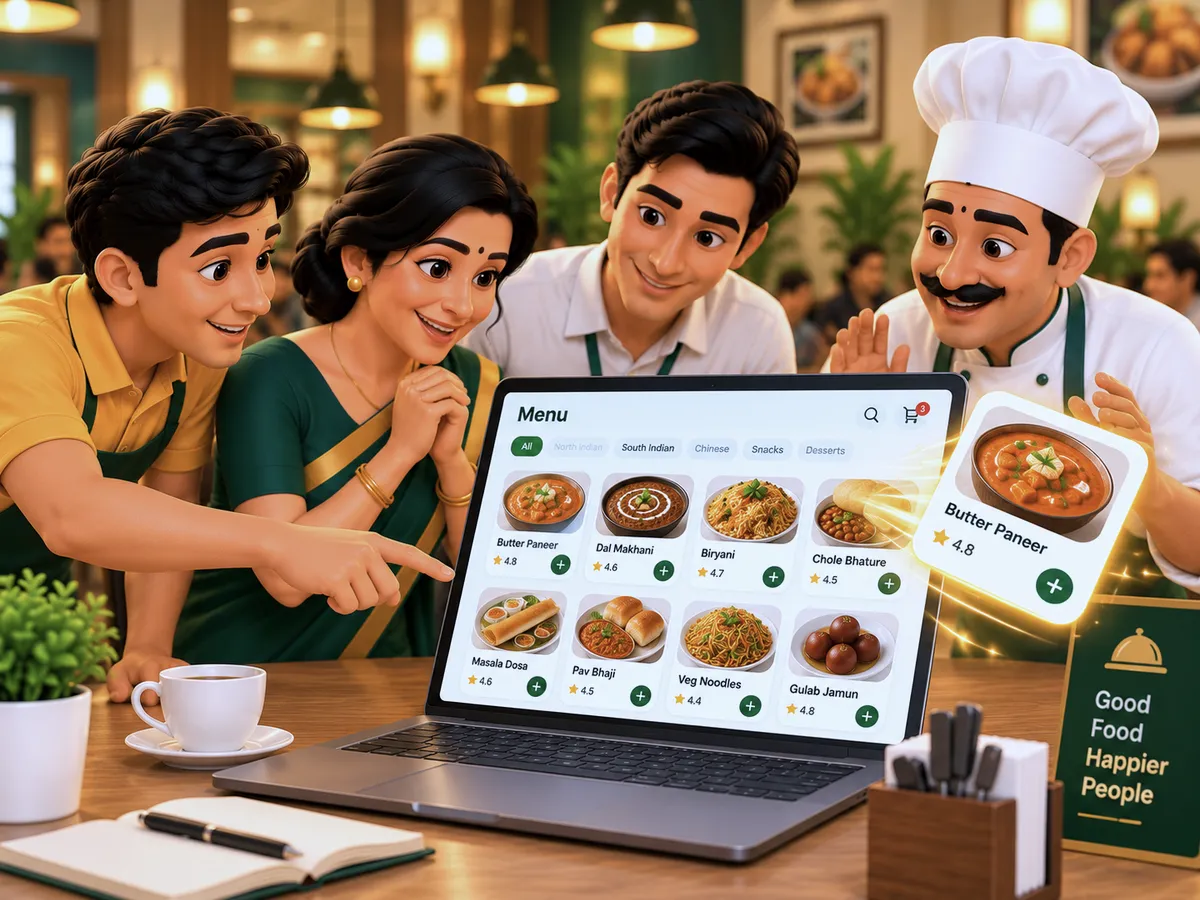
Group dishes into categories, each with an optional photo. Give every dish a name, description, price and a veg, non-veg or egg mark. Add several photos, pick the thumbnail, and set a kitchen station.
Set a tax rate on each dish, or create named tax categories so one rate change updates every dish that uses it. Add an HSN or SAC code, and give many dishes a tax category at once.
Give a dish sizes with their own prices. Add option groups such as spice level or extra cheese, required or optional, one choice or several. Bundle dishes into a combo and let guests swap a part, like rice for roti.
Show a struck-through original price, a badge such as Best Seller, and allergen and dietary tags. Add nutrition per serving, and mark a dish Featured so it stands out.
One switch takes a dish off the guest menu and off the counter's New order screen. Give a dish a stock count and it counts down with every order, switching itself off at zero and alerting staff.
Upload CSV files for categories, dishes, combos, sizes and add-on groups. A check runs first and shows what would be created, updated or rejected. Download a template to start; every import is kept in a history.
On Lite, one outlet means one menu; Pro covers several and adds copying a menu from one to another.
Yes, on Pro. A new one with an empty menu offers to copy categories, dishes, sizes, add-ons, combos and photos from another of yours. It copies only into an empty menu, so it never overwrites one you have built. You can edit everything afterwards.
On the menu import page you can add photographs of a printed menu. They are read into the same check a spreadsheet goes through, and you review each dish and price before saving. It reads categories, dishes and sizes, and may need approval from RMS Guru first.
Yes, in the languages you add. Staff type a translated name and description for each dish, and a translated name for each category, in Hindi, Bengali, Tamil, Telugu, Kannada, Malayalam, Marathi, Gujarati, Punjabi or Urdu. Guests get a language switch. Nothing is translated automatically, and the ordering buttons stay in English.
No. Leave the stock blank and a dish is unlimited; only its switch controls it. Set a number and each order from your website or the counter takes from it. At zero the dish switches off and staff get an alert.
Set up your restaurant on RMS Guru and take your first order today.
30-day free trial on Lite and Pro for your first restaurant · No card needed