One QR code for every table
Each table gets its own code. Print it from the Tables screen or download it as an image. There is also one code for the whole outlet, for the counter, a flyer or the shop window.
Ordering
Put a QR code on every table. Guests scan it, read your menu on their own phone and place the order, and it lands on your orders board. No app to install.
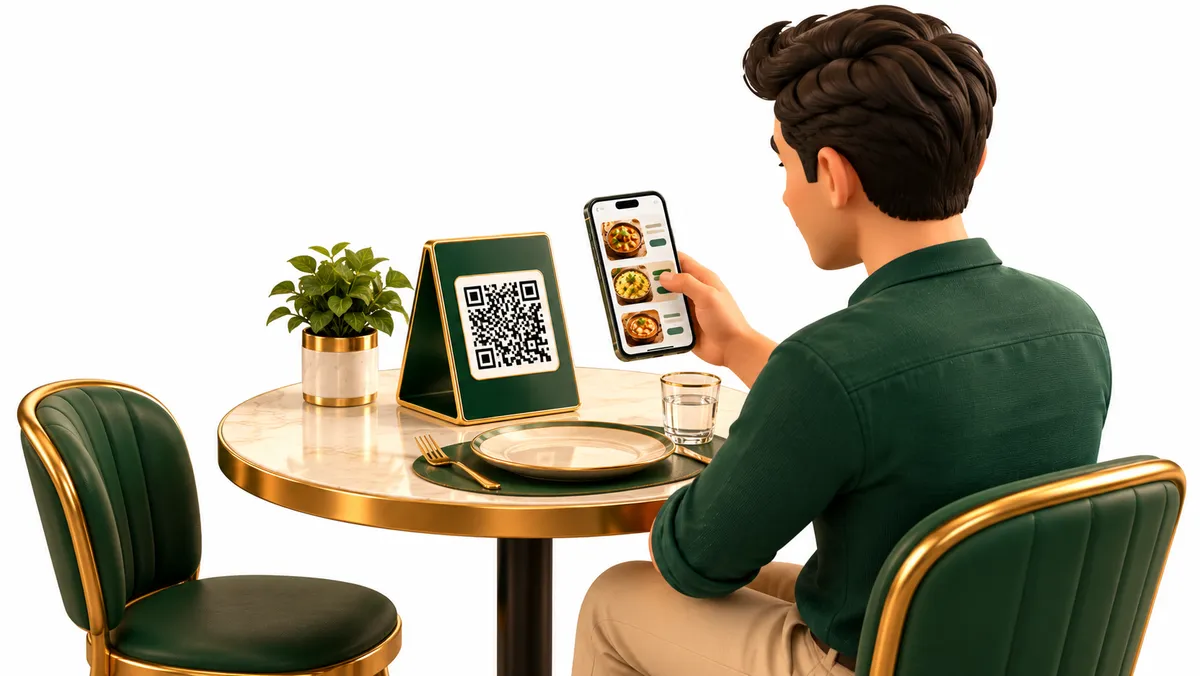
Each table gets its own code. Print it from the Tables screen or download it as an image. There is also one code for the whole outlet, for the counter, a flyer or the shop window.
The menu opens in the phone's browser, already tied to the table; if guest checkout is off, guests sign in first. They add dishes, choose portions and add-ons, and place the order.
With guest checkout on, a guest at a table needs only a name; a phone number is optional. New outlets start with it on, and you can switch it off in Operations settings.
Guests who sign in can pay online by UPI, card or netbanking, straight into your own Razorpay account once you connect it, with no commission. Guests ordering with just a name pay at the counter.
As your staff move the order along, the guest's status page goes from Order placed to Confirmed by kitchen, Being prepared, Ready and Served. Your team gets an alert when a new order arrives.
The first person to open the menu from a table's QR holds that table's order. Anyone who scans it after is told someone there is already ordering, and asked to add to that order or ask staff.
Lite covers up to 15 tables and 1,500 bills and orders a month; Pro has up to 100 tables per outlet and no monthly cap.
No app. The menu opens in the phone's browser. At a table, a guest can order with just a name when guest checkout is on, or sign in with an email code or password to pay online and use coupons. Pickup and delivery orders always need a signed-in account.
Open that table's QR code in the Tables screen and press Regenerate. The old code stops working at once, and anyone who scans it is told it is no longer valid. Print the new code for that table; your other tables are not affected.
On the Orders board in your console, with a chime for each new order. The Windows app also flashes on the taskbar when it is minimised. Once staff confirm an order, it moves to the kitchen screen.
No. Printed codes use your restaurant's rmsguru.com address by default, which keeps working whatever happens to a domain. Your own domain is a Pro feature, and it goes on printed codes only if you choose that.
Set up your restaurant on RMS Guru and take your first order today.
30-day free trial on Lite and Pro for your first restaurant · No card needed